How to set up everything?
To get started, download the free app for your device:
You will get a temporary network access for 1 hour so you can access the bot. Clicking the button will launch the app, then click "Import" and the link will be added automatically.
Time is limited. Please use this option only for the initial connection setup.
In our bot, you can get a trial period, purchase a permanent subscription, and manage your devices. This is your personal dashboard.
Open Telegram BotType /start and press "Connect" if you have already purchased a subscription.
After setting up your main subscription, don't forget to delete the temporary profile (trial_) to avoid confusion with servers in the future.
Press "Open Telegram Bot" above and type /start.
Button «🚀 Connect for free» -> «🔗 Connect».
In the dashboard, download the client for your system and click "+ Add Subscription".
If you previously used temporary access from the website, delete the profile named trial_* from the list in your app after setting up your main subscription. This will prevent server confusion.
Payment via SBP (Balance Top-up)
Follow these instructions to pay via your banking app using SBP (QR code):
In the bot menu, click "Buy Subscription" -> select plan (Basic or Standard) -> choose desired duration.
Click "Top-up Balance" -> choose "SBP (QR) (Platega)" -> click "Pay via SBP (QR)".
Click "Open Link" -> "Pay SBP". Select your banking app and confirm the payment.
After successful payment (balance top-up), return to the bot menu and click "Buy Subscription" again.
If you previously used temporary access from the website, delete the profile named trial_* from the list in your app after setting up your main subscription. This will prevent server confusion.
If websites don't open without VPN, the issue is not with the VPN
It must be set to automatic in your device settings. A difference of even 1 minute blocks the connection.
Try changing your network (Wi-Fi / mobile internet)
Check your remaining traffic in the bot, and click "Update Subscription" (circular arrow) in the app.
Try switching to a different server.
If it doesn't work, the issue is with your network
Turn the connection off and on again
Try switching to another server.
If you configured "Smart Routing", temporarily disable it. If the internet returns, update your rules list.
If your internet is slow on its own, a VPN will not make it faster
On low-end TVs and Android boxes, close other background apps. VPN requires CPU power for data encryption.
Turn off the VPN, wait 10 seconds, and turn it back on while choosing a different camouflage server.
Smart Routing Setup for v2raytun
For other clients, this feature works by default.
In the v2raytun app, go to the "Settings" tab (gear icon) and select "Traffic Rules".
In the opened menu, proceed to the "Community Rules" section.
Scroll through the list, find the ".RU without VPN" profile, and click the "Install" button next to it.
Go back to the "Traffic Rules" menu and toggle the very top switch "Enable feature".
Enabling this rule tells the app to automatically sort your traffic. Foreign resources (YouTube, Instagram) will route through the VPN, while local websites and apps (local banks, public services) will connect directly. This removes the need to constantly toggle the VPN on and off.
What is this for?
The "Split Tunneling" feature allows you to select specific apps that will route through the VPN. Everything else (e.g., local banking, delivery apps, taxi services) will work directly. This saves battery life and avoids constant manual toggling.
This feature is only available for Android users.
Incy
Settings → Per-App Proxy → Enable "Turn on per-app proxy" → Choose mode "Only through tunnel".
Then find the required applications in the list (YouTube, Telegram, etc.) and check them.
After changing split tunneling settings, it is recommended to turn the connection off and on again in the app.
V2RayTun
Settings → Routing → Per-App Routing → Enable "Per-App Routing".
Select applications from the list or use search.
After changing split tunneling settings, it is recommended to turn the connection off and on again in the app.
FlClash X
Settings → Access Control → Enable "App Access Control".
Select the necessary programs from the list that appears.
After changing split tunneling settings, it is recommended to turn the connection off and on again in the app.
Install Happ on both your smartphone and Android TV.
Open the Happ app on your TV. You will see a QR code saying "Scan via Happ on your phone".
Copy your subscription link from the Telegram bot dashboard, open Happ on your smartphone and tap the "From Clipboard" button on the bottom left.
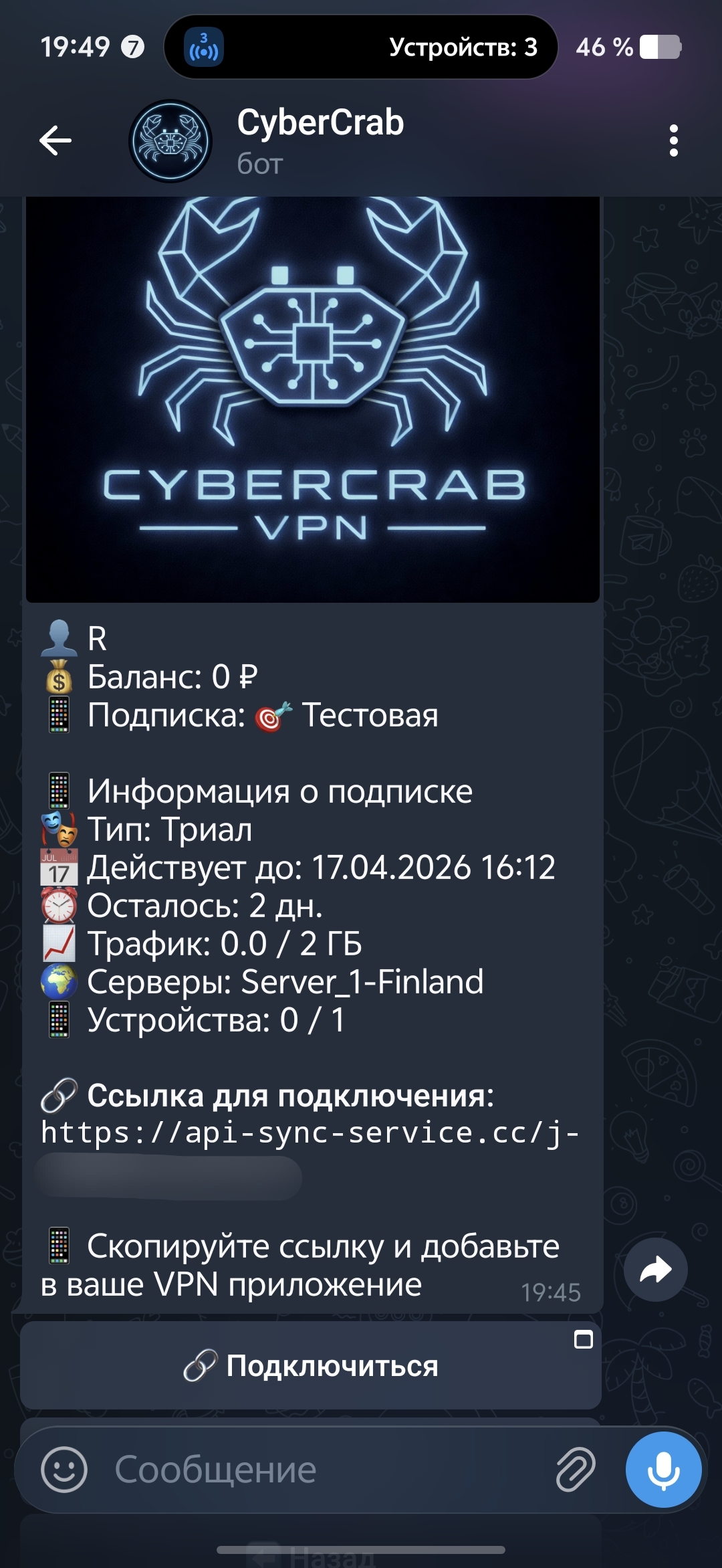
Tap the "QR Code" button on the bottom right of your phone and aim it at the TV screen.
Select the required subscription and tap "Send".
📺 Transfer Link to Android TV via LocalSend
Use this method to avoid typing a long link with your remote control.
In the bot, send /start -> «Subscription». Find the "🔗 Connection Link" block and tap it to copy.
Install LocalSend on both your TV and the smartphone from which you will transfer the link. Download: localsend.org
Both devices must be connected to the same Wi-Fi network (you can share a hotspot from your phone).
In the LocalSend app on your smartphone, click the "Paste" button.
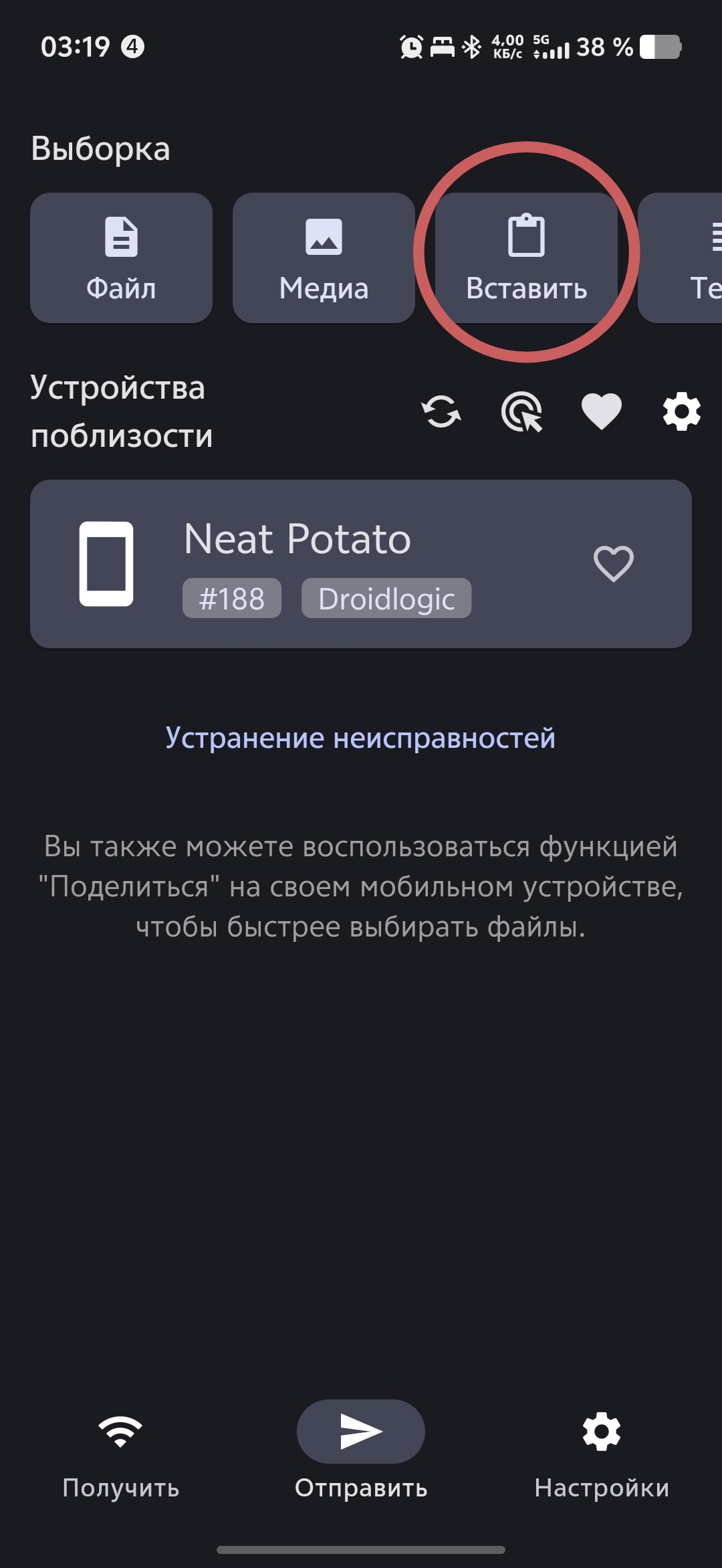
Select your TV from the list of available devices to transfer the link.
Accept the file on your TV and copy the received text link.
Open the link in your TV's browser to read instructions OR paste it directly into V2Raytun/FLClashX as described below.
If V2Raytun is installed on your TV
Click the "+" icon in the top right corner of the screen.
Select "Import from clipboard". Done!
If FLClashX is installed on your TV
In the app, navigate to profiles and click «+ Add Profile».

Paste your subscription link from the clipboard into the URL field and click «Submit».
Frequently Asked Questions
Which server should I choose?
What do "Rule / Global / Direct" mean in the FLClashX app?
These are routing modes. They instruct your VPN app how exactly it should sort your internet traffic.
- Rule / Routing — This is the "smart" mode, which is used by default. The app splits your traffic automatically based on predefined rules: domestic websites (banks, public services, local marketplaces) open directly through your normal provider, while social media and foreign services route via the VPN. This is the most convenient mode for everyday use.
- Global / Proxy — Full proxying mode. Absolutely all internet traffic on your device is forced through the remote VPN server. Use this if you need to mask your real IP address for every single website. Important: in this mode, many domestic banking apps may fail to load.
Note: after enabling this mode, go to the "Proxy" tab and make sure that under the Global group you select CyberCrab VPN (Selector) rather than DIRECT. - Direct — Complete VPN bypass mode. All traffic routes normally, bypassing the secure tunnel. Effectively, the VPN stops masking your IP or unblocking content, even if the connection profile remains active. Typically, this mode is only needed by developers for network testing.
If Telegram is not working for you and you cannot purchase a subscription via the bot, write to us — we will provide temporary access.